goto the folder in which you are searching file
find . -type f | xargs grep -l "localhost"
localhost is the text i want to search inside the files.
Thursday, October 30, 2014

Tuesday, September 30, 2014
lynx: Can’t access startfile http://localhost/whm-server-status cPanel
If you are getting the error below while running the command service httpd status in a Cpanel server follow the steps below to resolve it.
========
Looking up localhost
Making HTTP connection to localhost
Alert!: Unable to connect to remote host.
lynx: Can't access startfile http://localhost/whm-server-status
========
There can be multiple reasons behind this error it could issue with a modsec rule causing error or anything else, Follow the steps below it will point you to the exact issue with the httpd(Apache).
========
Looking up localhost
Making HTTP connection to localhost
Alert!: Unable to connect to remote host.
lynx: Can't access startfile http://localhost/whm-server-status
========
There can be multiple reasons behind this error it could issue with a modsec rule causing error or anything else, Follow the steps below it will point you to the exact issue with the httpd(Apache).
- SSH server as root user
- httpd -e DEBUG
Monday, September 22, 2014
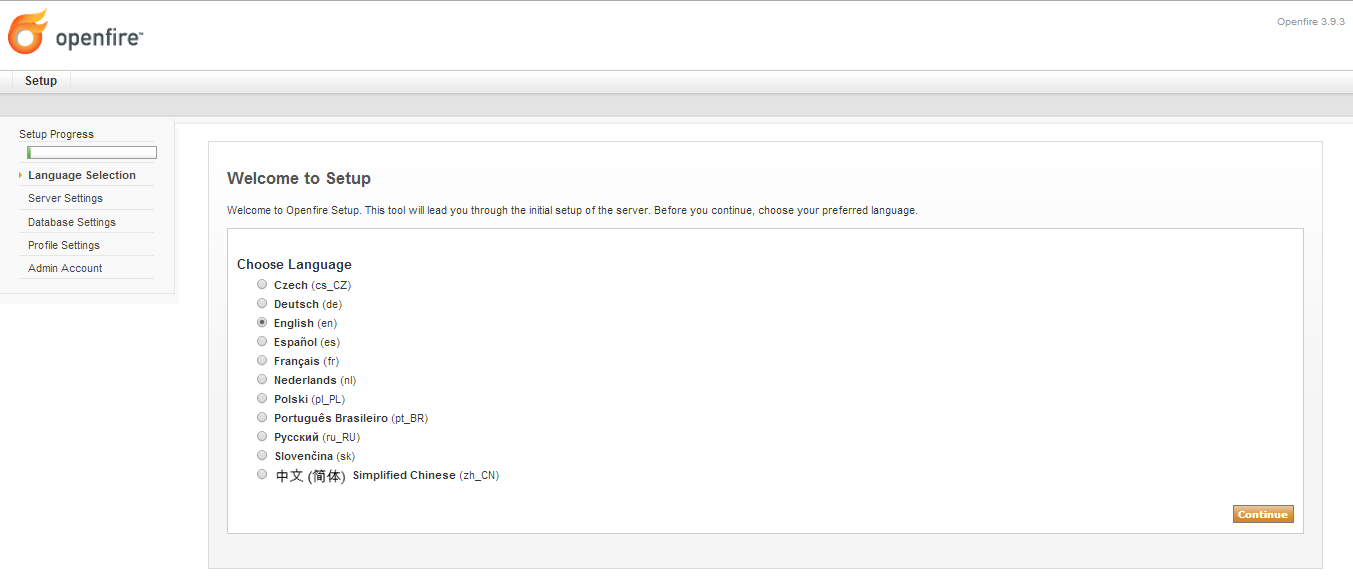
how to install openfire chat server 3.9.3 with external mysql database in ubuntu

Openfire (previously known as Wildfire, and Jive Messenger) is an instant messaging (IM) and groupchat server that uses XMPP server written in Java and licensed under the Apache License 2.0
Follow the steps below to install Open Fire 3.9.3 with embedded databases in Ubuntu.
Step 1. Update your server
- SSH your server as root user or use sudo
- sudo apt-get update
- sudo apt-get upgrade
- sudo apt-get install python-software-properties
- sudo add-apt-repository ppa:webupd8team/java
- sudo apt-get update
Step 3. If you are already using OpenJDK, remove it to minimize any Java conflicts.
- sudo apt-get remove --purge openjdk*
- sudo apt-get install oracle-java7-installer
Step 5. Install MySql Database server
Step 6. Download and Install openfire 3.9.3- sudo apt-get install mysql-server
- sudo mysql -u root -p
- mysql> CREATE DATABASE dbopenfire CHARACTER SET='utf8';
- mysql> CREATE USER 'openfire'@'localhost' IDENTIFIED BY 'openfirepwd';
- mysql> GRANT ALL PRIVILEGES ON dbopenfire.* TO openfire@localhost WITH GRANT OPTION;
- mysql> FLUSH PRIVILEGES;
- mysql> quit
- cd /tmp
- wget http://download.igniterealtime.org/openfire/openfire_3.9.3_all.deb
- dpkg -i openfire_3.9.3_all.deb
Ignore all installation errors regarding user and folder permissions.it cause depending on your version of JRE/JDK.
- vi /etc/init/d/openfire
- Replace java-6-sun with java-6-oracle or java-7-oracle
- sudo apt-get install rpl
- sudo rpl '6-sun' '7-oracle' /etc/init.d/openfire
- sudo service openfire start
- sudo ufw allow 9090/tcp
- sudo ufw allow 9091/tcp
- sudo ufw allow 5222/tcp
- sudo ufw allow 7777/tcp
- sudo ufw allow 7443/tcp
- sudo ufw allow 7070/tcp
- sudo ufw allow 3478/tcp
- sudo ufw allow 3479/tcp


Friday, August 22, 2014
openmeetings exception: java.lang.Exception: Path to JOD Library folder does not exist openmeetings not able to upload document
If you are getting any such error as below while uploading any document like doc, docx, odp, xls, xlsx, ppt, pptx follow the steps below to resolve it.
===============================
key: processSWF
process: generateSwf
command: /usr/share/pdf2swf -s insertstop -s poly2bitmap -i -j 85 -s zoom=100 /usr/src/openmeetings/webapps/openmeetings/upload/files/7de20358e15fc70c1bb2a34b393e6333/7de20358e15fc70c1bb2a34b393e6333.pdf /usr/src/openmeetings/webapps/openmeetings/upload/files/7de20358e15fc70c1bb2a34b393e6333/7de20358e15fc70c1bb2a34b393e6333.swf
exception: java.io.IOException: Cannot run program "/usr/share/pdf2swf": java.io.IOException: error=2, No such file or directory
error: Cannot run program "/usr/share/pdf2swf": java.io.IOException: error=2, No such file or directory
exitValue: java.io.IOException: Cannot run program "/usr/share/pdf2swf": java.io.IOException: error=2, No such file or directory
out:
key: processThumb
process: generateBatchThumbByWidth
command: /usr/bin/convert -thumbnail 80 /usr/src/openmeetings/webapps/openmeetings/upload/files/7de20358e15fc70c1bb2a34b393e6333/7de20358e15fc70c1bb2a34b393e6333.pdf /usr/src/openmeetings/webapps/openmeetings/upload/files/7de20358e15fc70c1bb2a34b393e6333/_thumb_page-%04d.jpg
exception: null
error: convert: unable to open image `/usr/src/openmeetings/webapps/openmeetings/upload/files/7de20358e15fc70c1bb2a34b393e6333/7de20358e15fc70c1bb2a34b393e6333.pdf': No such file or directory.
convert: missing an image filename `/usr/src/openmeetings/webapps/openmeetings/upload/files/7de20358e15fc70c1bb2a34b393e6333/_thumb_page-%04d.jpg'.
key: processOpenOffice
process: doJodConvert
command: null
exception: java.lang.Exception: Path to JOD Library folder does not exist
error: Path to JOD Library folder does not exist
exitValue: java.lang.Exception: Path to JOD Library folder does not exist
out: null
===============================
To import doc, docx, odp, xls, xlsx, ppt, pptx, all files that you can open with OpenOffice to OpenMeetings and use them in the whiteboard you need OpenOffice or LibreOffice installed the machine that runs OpenMeetings.
Installation of JODConverter means: You have download the ZIP binary from their website and then configure in Apache OpenMeetings Administration > Configuration the config key jod.path to point to the "lib" directory of the unpacked JODConverter binary. There is no restart of OpenMeetings required.
my configurations were as below.
jod.path /usr/share/jodconverter-core-3.0-beta-4/lib
===============================
key: processSWF
process: generateSwf
command: /usr/share/pdf2swf -s insertstop -s poly2bitmap -i -j 85 -s zoom=100 /usr/src/openmeetings/webapps/openmeetings/upload/files/7de20358e15fc70c1bb2a34b393e6333/7de20358e15fc70c1bb2a34b393e6333.pdf /usr/src/openmeetings/webapps/openmeetings/upload/files/7de20358e15fc70c1bb2a34b393e6333/7de20358e15fc70c1bb2a34b393e6333.swf
exception: java.io.IOException: Cannot run program "/usr/share/pdf2swf": java.io.IOException: error=2, No such file or directory
error: Cannot run program "/usr/share/pdf2swf": java.io.IOException: error=2, No such file or directory
exitValue: java.io.IOException: Cannot run program "/usr/share/pdf2swf": java.io.IOException: error=2, No such file or directory
out:
key: processThumb
process: generateBatchThumbByWidth
command: /usr/bin/convert -thumbnail 80 /usr/src/openmeetings/webapps/openmeetings/upload/files/7de20358e15fc70c1bb2a34b393e6333/7de20358e15fc70c1bb2a34b393e6333.pdf /usr/src/openmeetings/webapps/openmeetings/upload/files/7de20358e15fc70c1bb2a34b393e6333/_thumb_page-%04d.jpg
exception: null
error: convert: unable to open image `/usr/src/openmeetings/webapps/openmeetings/upload/files/7de20358e15fc70c1bb2a34b393e6333/7de20358e15fc70c1bb2a34b393e6333.pdf': No such file or directory.
convert: missing an image filename `/usr/src/openmeetings/webapps/openmeetings/upload/files/7de20358e15fc70c1bb2a34b393e6333/_thumb_page-%04d.jpg'.
key: processOpenOffice
process: doJodConvert
command: null
exception: java.lang.Exception: Path to JOD Library folder does not exist
error: Path to JOD Library folder does not exist
exitValue: java.lang.Exception: Path to JOD Library folder does not exist
out: null
===============================
To import doc, docx, odp, xls, xlsx, ppt, pptx, all files that you can open with OpenOffice to OpenMeetings and use them in the whiteboard you need OpenOffice or LibreOffice installed the machine that runs OpenMeetings.
Installation of JODConverter means: You have download the ZIP binary from their website and then configure in Apache OpenMeetings Administration > Configuration the config key jod.path to point to the "lib" directory of the unpacked JODConverter binary. There is no restart of OpenMeetings required.
- SSH server as root user
- cd /usr/share
- you can download the jodconverter zip file from the link
- wget http://jodconverter.googlecode.com/files/jodconverter-core-3.0-beta-4-dist.zip
- unzip jodconverter-core-3.0-beta-4-dist.zip
my configurations were as below.
jod.path /usr/share/jodconverter-core-3.0-beta-4/lib
Friday, August 15, 2014
How to install RMS (Ray Media Server) on centos redhat fedora
To install Ray Media server follow the seps below.
Step 1) Install java if you don't have.
Step 3) Configure RMS
1). access.dat – mention all domain names which will be allowed to access RMS. Every domain name should be written on a separate line and should not contain "http://" and "www", just yourdomain.com;
2). open file red5.sh – set the value for JAVA_HOME variable, It should be the path to the folder where JRE is installed, In my case it was below.
3). Goto file run_daemon.sh set the value for RAY_SERVER_PATH variable, It should be the path to the RMS folder on your server.
4). We need to make entries of webapp.virtualHosts for chat, board, global, im, We need to mention the server IP there.
***For board
cd /opt/ray_server/RMS_7.1.0
./run_daemon.sh &
========
Step 5) Now we can rum the RMS.

Step 1) Install java if you don't have.
- yum install java-1.7.0-openjdk
Step 2) Install RMS
- cd /opt
- mkdir ray_server
- cd ray_server/
- wget http://get.boonex.com/RMS-LINUX-v.7.1.0
- tar xzvf RMS-LINUX-v.7.1.0
Step 3) Configure RMS
1). access.dat – mention all domain names which will be allowed to access RMS. Every domain name should be written on a separate line and should not contain "http://" and "www", just yourdomain.com;
- cd /opt/ray_server/RMS_7.1.0
- vi access.dat
- vi red5.sh
- JAVA_HOME=/usr/lib/jvm/java-1.7.0-openjdk-1.7.0.65/
- vi run_daemon.sh
- RAY_SERVER_PATH=/opt/ray_server/RMS_7.1.0/
4). We need to make entries of webapp.virtualHosts for chat, board, global, im, We need to mention the server IP there.
***For board
- cd /opt/ray_server/RMS_7.1.0/webapps/board/WEB-INF
- vi red5-web.properties
- Make the entry of server IP like below.
- webapp.virtualHosts=0.0.0.0 webapp.virtualHosts=122.122.122.122
- Note 122.122.122.122 is the server IP.
- cd /opt/ray_server/RMS_7.1.0/webapps/chat/WEB-INF
- vi red5-web.properties
- Make the entry of server IP like below as we did for board.
- webapp.virtualHosts=0.0.0.0 webapp.virtualHosts=122.122.122.122
- cd /opt/ray_server/RMS_7.1.0/webapps/global/WEB-INF
- vi red5-web.properties
- Make the entry of server IP like below as we did for board.
- webapp.virtualHosts=0.0.0.0 webapp.virtualHosts=122.122.122.122
- cd /opt/ray_server/RMS_7.1.0/webapps/im/WEB-INF
- vi red5-web.properties
- Make the entry of server IP like below as we did for board.
- webapp.virtualHosts=0.0.0.0 webapp.virtualHosts=122.122.122.122
Step 4) Add the below following lines in /etc/rc.local file, So when server reboots RMS is started automatically.
- vi /etc/rc.local
========
./run_daemon.sh &
========
Step 5) Now we can rum the RMS.
- cd /opt/ray_server/RMS_7.1.0
- chmod 755 run_daemon.sh
- ./run_daemon.sh &
- Installing RMS also installs the Red5 server, which can be tested at http://server_ip:5080
- RMS Address: server_main_IP
- RMS Port: 1935
- RMS HTTP Port: 5080